The wrapper scripts and agent instruction template described in this article are available at: adrozman/scientific-ai-agent-tools.
Introduction
Connecting Large Language Models to a computer terminal as “AI agents” greatly improves their usefulness for coding as they can execute the code, “read” the output and potential error messages, and iterate if they decide that the user-defined objective is not met. AI agents are great for coding specific tasks that can be easily validated, but with current LLM capabilities they cannot practically and affordably replace scientists and engineers for deep, specialized scientific research. However, AI agents can hugely boost the productivity of researchers by performing menial tasks such as debugging crashes in analysis codes or creating and formatting plots. These tasks are necessary for research but not the best use of researchers’ time and expertise when AI agents can usually solve them in seconds. The main focus of this article is sharing a way I found to improve the ability of AI agents to collaborate with researchers, scientists, and engineers that use figures in Python or MATLAB to visually verify the data analysis process.
Problem Statement
The default behavior of displaying a figure in Python and MATLAB is to create an interactive graphical window that the user can resize, zoom or probe data points on. This is a useful feature for scientific and research analysis, but creating the interactive graphical interface can account for the majority of a simple script’s runtime. While most LLMs can process images along with text inputs, they are a lot worse at deriving meaning from plots than raw text. So, they can code most effectively by rapidly iterating on scripts that output text only. Additionally, researchers may run analysis scripts connected “headlessly” via SSH to high performance computing (HPC) machines or clusters where simulations were run. Forwarding the interactive plot to the researcher’s machine (e.g. via X11) can add additional minutes to execution time, which negates the AI agent’s ability to test and iterate on code.
In my experience, current agents will recognize these issues and try to resolve them by adding lines (like matplotlib.use('Agg') in Python or set(groot, 'DefaultFigureVisible', 'off') in MATLAB) into the script to stop the code’s graphical interface generation.
This solves the issue for the agent; however, the script’s original behavior has been changed if the researcher runs the script again interactively.
The Solution: Custom Execution Wrappers For the AI Agent
The great thing here is that AI agent harnesses (the software that lets LLMs act as agents, e.g. Claude Code, Codex, Antigravity) have been designed with the ability to easily customize agents’ behavior, which we will take advantage of here.
We will create custom tools to equip the AI agent with – for this application, a wrapper that runs any script and intercepts graphical outputs without changing a line of the original code.
Then, a “rule” is written in the agent instructions (e.g. AGENTS.md) telling the AI agent to use the wrappers whenever running Python and MATLAB scripts.
Additional Details on the Python Wrapper (ai_run.py)
(My ai_run.py is available at adrozman/scientific-ai-agent-tools).
-
Sets a headless
matplotlib.use('Agg')backend before any imports. -
Instead of displaying figures,
plt.show()is intercepted. If the figure was not saved in the original script, the wrapper saves it to a localai_plots/directory so the agent can process it. If a figure is saved by the script, it is saved normally.
Additional Details on the MATLAB Wrapper (ai_run_matlab.py)
(My ai_run_matlab.py is available at adrozman/scientific-ai-agent-tools).
MATLAB adds additional complexity as it is a closed-source commercial code.
Instead of being able to replace global functions like plt.show(), the wrapper injects session-level MATLAB commands before and after running the user’s script.
-
Injects
set(groot, 'DefaultFigureVisible', 'off');into MATLAB execution via the-batchflag. This suppresses the GUI for the session without modifying the original script. -
After the script runs, the wrapper checks if any new images were created. The wrapper saves open figures to the local
ai_plots/directory, skipping ones that were already saved.
How to Get Your AI Agents to Use These Wrappers
The key to making the use of these wrappers automatic is through agent instructions.
Most AI agent harnesses put an AGENTS.md in a folder somewhere in the user’s home directory.
Some examples are ~/.codex/AGENTS.md, ~/.claude/CLAUDE.md, and ~/.gemini/config/AGENTS.md.
Read more about this from Anthropic here.
First, I place the wrapper scripts in a folder in my home directory (e.g. ~/.ai-tools/scripts).
In the AI agent harness configuration settings, I grant all agents permission to this directory.
Then, in the global agent instructions, I add the following text:
# Python Plotting Guidelines
Whenever you (the AI agent) need to run or test a Python script that generates
Matplotlib plots, use the global AI Wrapper:

    python3 ~/.gemini/scripts/ai_run.py <script_name.py>

# MATLAB Plotting Guidelines
Whenever you (the AI agent) need to run or test a MATLAB script:

    python3 ~/.gemini/scripts/ai_run_matlab.py <script_name.m>
Performance Overhead
The wrappers are lightweight, but the wrapper for MATLAB is less efficient as it requires some workaround for the closed-source commercial code. Here are some sample performance benchmarks:
| Scenario | Python Overhead | MATLAB Overhead | Notes |
|---|---|---|---|
| Script saves plots natively | ~0.00s | ~0.02s | MATLAB wrapper manually scans directory |
| Script does not save plots (Interactive Mode) | ~0.29s | ~10.0s |
Example: A Task Where the Human Eye Matters Most
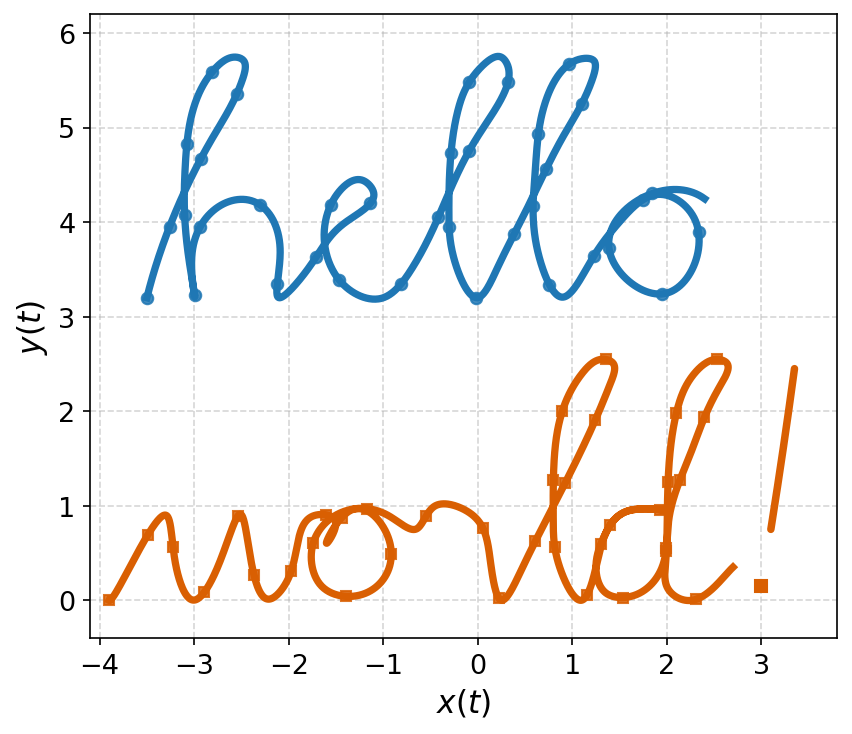
I used an AI agent equipped with these wrapper scripts to create the thumbnail image for this post, which is few continuous parametric curves that write “hello world!” in cursive.
It is an example of an output that a human can very easily judge as correct or not, but an LLM may struggle to catch minor details.
The AI agent produced a reasonable first attempt, but it had some errors like the “l”s not crossing properly and the “w” looking more like a “v”.
The AI agent was not able to “see” these errors that I picked out instantly.
The ai_run.py wrapper allowed me to rapidly iterate using descriptive feedback like, “Make the lines twice as thick and make the cross in the tail of the “d” match the “l””.
It took several exchanges, but in a few minutes I had an acceptable output.
This task is also the right use case for faster tiers of language models like Claude Haiku, Gemini Flash, and GPT Luna (beware, these tier names may become outdated soon!). More expensive models are not necessary for simple implementation tasks, so save your tokens for something like requesting feedback on a complex research plan.
Conclusion
The wrappers presented in this article enable AI agents to better serve as efficient collaborators without interrupting a researcher’s work. They allow AI agents to autonomously run any script and inspect figures whether they are saved by the script or not, without modifying the original script. The information in this article should be useful to scientists, researchers, and engineers, especially for processing data on headless HPC clusters. These wrappers can be treated as templates, so try modifying them for your particular use cases!